
Accessing your Email account in Gmail
1. Log in to your Gmail Account.
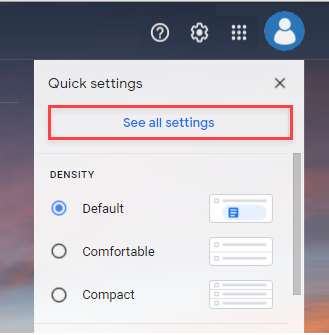
2. Open the Settings by clicking the Gear icon in the top right hand corner, then click See all settings
3. Click Accounts and Import.
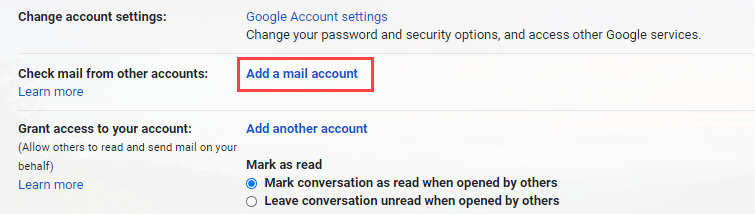
4. Scroll down, and under the Check mail from other accounts section, click Add a mail account.
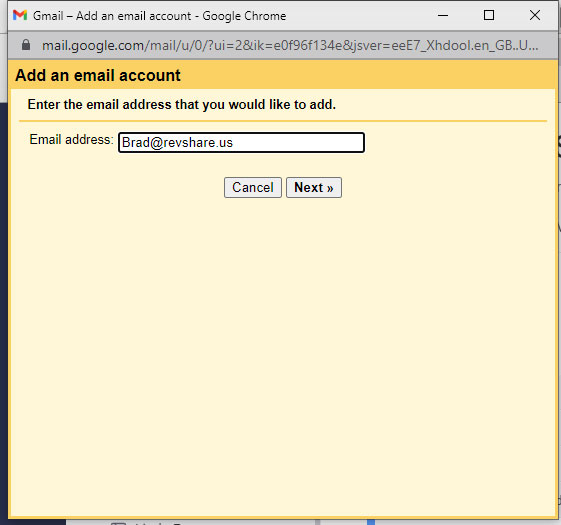
5. Enter the email address.
6. For Username, enter the full email address.
7. Enter the password for the email account.
8. Enter Username (your email): user@revshare.us, Password, POP Server: mail.revshare.us and port 995
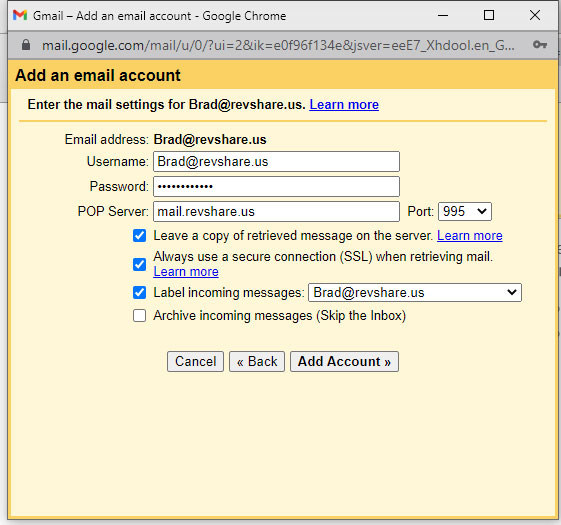
9. Choose any additional options you may want. We recommend selecting Leave a copy of the retrieved message on the server for easy access to your mail on any computer.
10. Click the Add Account button.
Outgoing Mail (SMTP)
11. Choose " Yes, I want to be able to send mail as user@revshare.us."
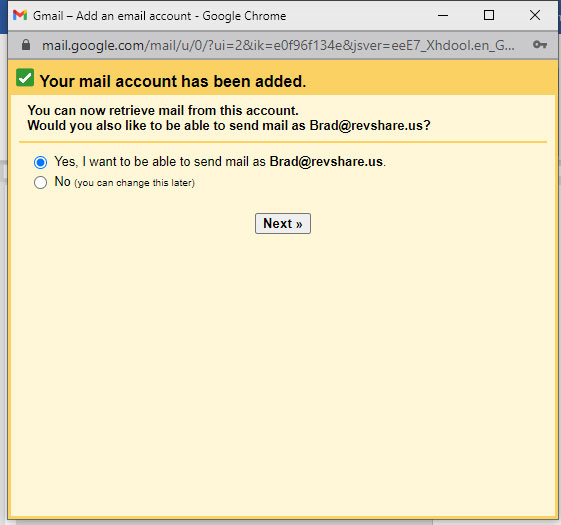
12. Choose “Treat as an Alias”.
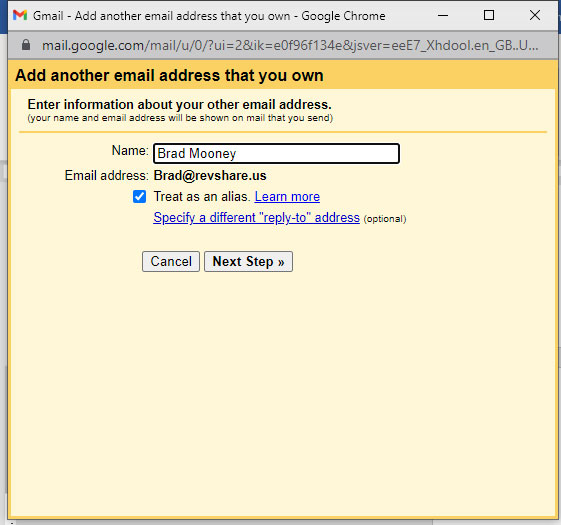
13. Click the Add account button.
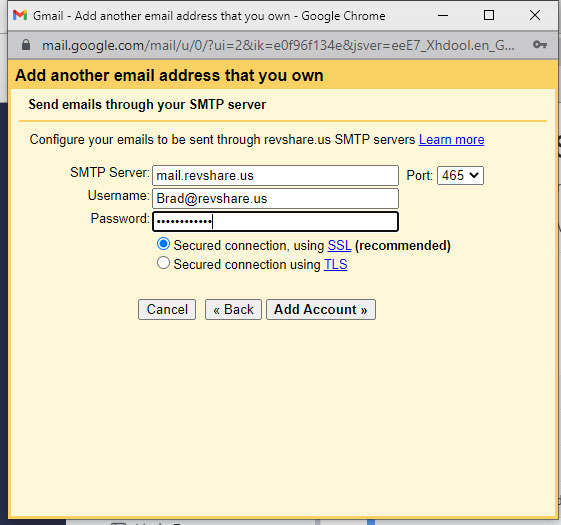
14. Choose to send "Send through revshare.us SMTP server."
15. Enter the SMTP Server: mail.revshare.us
16. Enter your full email address as the Username.
17. Enter Password for your email account.
18. Choose Port Port 465 (SSL)
19. Select Add Account.
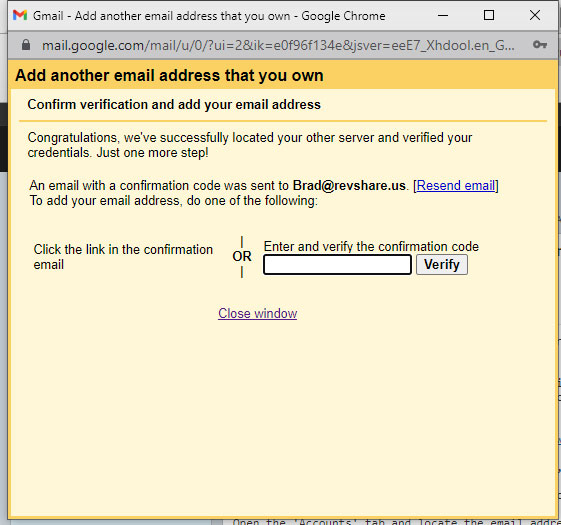
20. Enter the confirmation code sent to your email
21. In your Gmail settings choose option “Reply from the same address to which the message was sent”:
